Edit a PDF's real text — and turn it into Word — without uploading it
TinyOffice PDF edits the text already on the page, keeps the original fonts, and converts PDFs to Word, Excel or PowerPoint entirely on your computer.
"Can you just fix the date on page 3?" is one of the most frustrating requests in office life. The usual options are to annotate over the top, hunt for the original source file, or upload the PDF to a website you've never heard of.
TinyOffice PDF gives you a fourth option: change the text that's actually there.
Editing text in place
Open the PDF and switch to the Edit tab. Click a line of text and type. TinyOffice keeps the original fonts, so the corrected date looks like it was always part of the document. Images can be replaced or moved the same way.
This is different from adding a text box on top. The words you change are the words in the file, so they can be searched, selected and copied like the rest of the page.
Everything else you do to PDFs
- Annotate with highlights, underlines, shapes, sticky notes and comments.
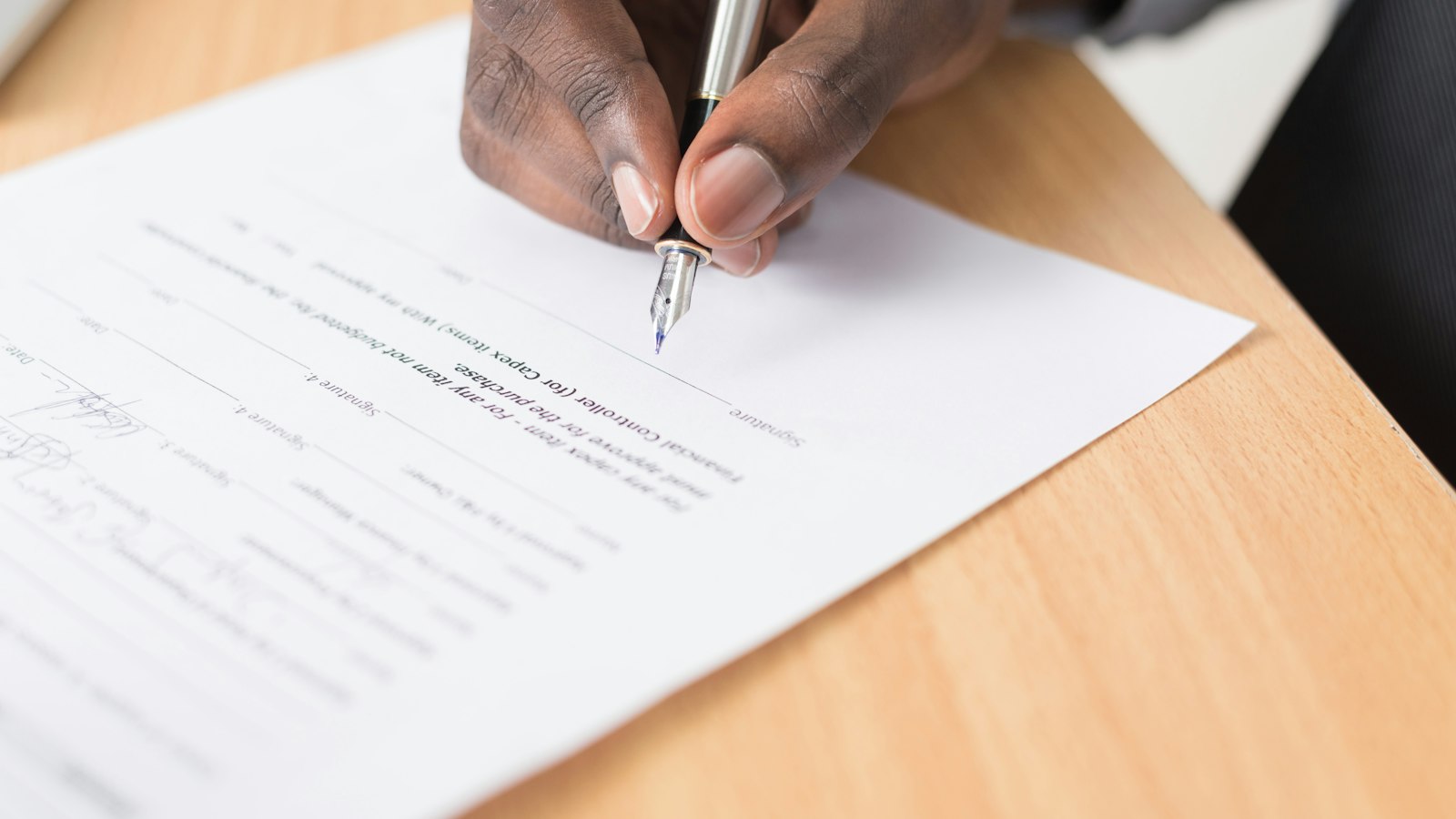
- Sign by drawing, typing or uploading an image of your signature — and reuse it from My signatures.
- Fill Form to complete interactive forms (or let AI Fill Form suggest values).
- Pages to rotate, delete, extract, insert, crop or resize pages, Merge PDF, Split PDF, or put several pages on one sheet.
- Watermark & header/footer for drafts and confidential copies.
Convert to Word, Excel or PowerPoint
Sometimes the right answer is to get out of PDF altogether. Choose Export as Word…, Export as Excel… or Export as PowerPoint… and TinyOffice creates an editable Office file.
| Convert to | Best for |
|---|---|
| Word | Reports, letters and contracts |
| Excel | Tables, statements and invoices |
| PowerPoint | Decks that were exported to PDF |
The conversion runs entirely on your computer. The PDF is never uploaded — which matters when the file is a contract, a payslip or a medical record.
Scanned pages
On macOS and Windows, scanned pages go through on-device OCR, so a photographed or scanned document comes out as text you can edit rather than a picture of text.
AI for long PDFs
When a PDF is long, AI Summarize and AI Key Points give you the shape of the document before you dive in. Like everything the assistant does, it works with the file you have open and shows you what it found.
Try it
Open any PDF in TinyOffice and press the Edit tab. The full feature list is in the PDF guide, and conversion is covered in Convert PDF to Office.